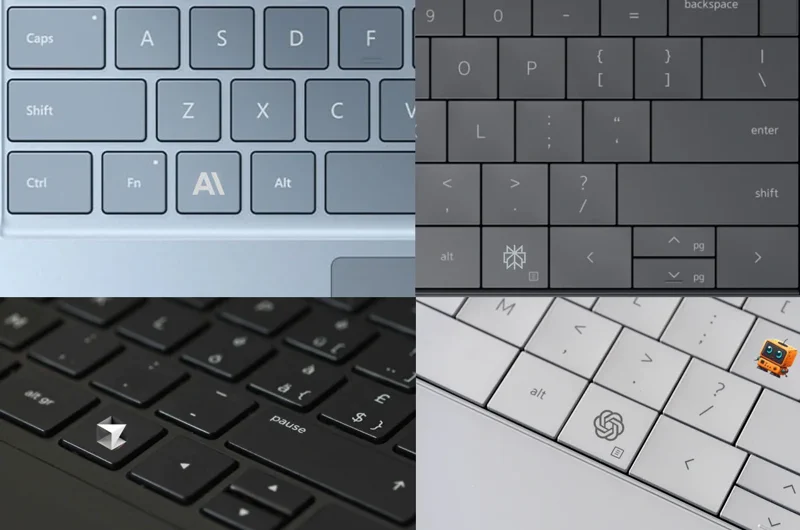
Everything is becoming “AI”: the monitor, mouse, keyboard—the USB cable will probably get there too—and of course the computer. Does that mean we should throw out a perfectly good desktop or laptop?
The hardware is changing too: vendors sell extra processing power and neural accelerators, sometimes as a purchase and sometimes as a cloud subscription. The genuinely useful novelty may be the dedicated AI key. On Microsoft’s Copilot+ PC, the right-hand Windows key becomes a Copilot key, whether we like it or not.
I use Perplexity as my AI interface. You may prefer ChatGPT, Claude or Gemini, but I do not want to buy a new PC just to get a button.
Recept
Here is a simple way to turn an existing Windows computer into an “AI PC”:
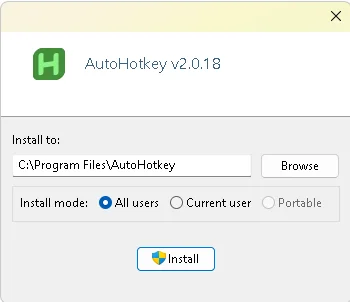
- Download and install AutoHotkey v2. It runs in the background and lets you define custom keyboard shortcuts, so Windows may complain a little during installation.
- Create a new file with the
*.ahkextension. I started with the “Minimal for v2” template, but an empty file works too. Save it somewhere you can find later, such as Documents.
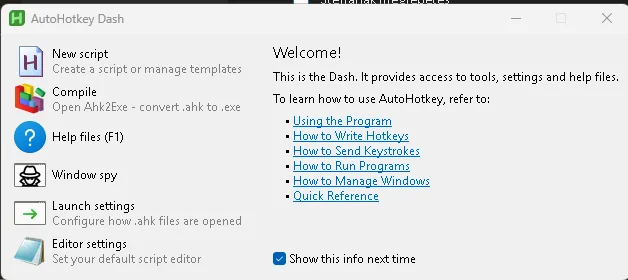
- Put your shortcuts in this file, one key or key combination per line, followed by the application to launch. Any AI assistant can help write the commands if you explicitly mention AutoHotkey 2. The result may look like this; save the file when you are done:
#Requires AutoHotkey v2.0

^!o::Run "msedge.exe www.google.com/ --new-window" ; Open Google in a new Edge window with Ctrl+Alt+O

Pause::Run "msedge.exe" ; Open Edge with Pause key

^PrintScreen::Run "C:\Program Files\Opera\opera.exe https://www.perplexity.ai" ; Open Perplexity.ai in Opera with Ctrl+PrintScreen

$PrintScreen::Run "C:\Program Files\Opera\opera.exe https://www.perplexity.ai" ; Open Perplexity.ai in Opera with PrintScreen

$RWin::Run "C:\Program Files\Opera\opera.exe https://www.perplexity.ai" ; Open Perplexity.ai with Right Windows Key

$AppsKey::Run "C:\Program Files\Opera\opera.exe https://www.perplexity.ai" ; Open Perplexity.ai

^Home::Run "C:\Program Files\Opera\opera.exe http://192.168.1.147:8123/lovelace/default_view" ; Open Home Assistant in Opera with Ctrl+Home
Choose keys you rarely use: for example the right mouse button, Pause or the right Windows key. You can combine them with Control and Alt, as in the examples above. The left and right Control keys can also be addressed separately; on a laptop I use:
$RCtrl::Run "C:\Users\(USERNAME)\AppData\Local\Programs\Opera\opera.exe" "https://www.perplexity.ai"
- Double-click the file to load it immediately. For a more useful setup, load it automatically when Windows starts. Create a shortcut to the
*.ahkfile in the Startup folder:
a) Press Windows+R and entershell:startupin the “Run” dialog.
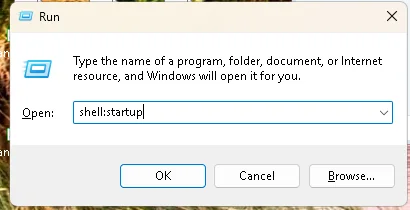
b) Copy a shortcut to the command file into the Startup folder. Alternatively, drag the file there with the right mouse button and choose “Create shortcut” from the context menu.
Have a productive day!