ChatGPT is taking the reins of my computer. This isn’t just clickbait—I genuinely pulled this off! It’s something that Cortana barely managed, and the current Windows Copilot (where available) is still working on it. But what can we do in the meantime?
While there are methods to execute natural language commands locally (like Open Interpreter or PowerShellAI), or in a remote sandbox (like the ClubGPT-Sandbox), this tool offers a unique approach to natural language command execution right through the ChatGPT interface.
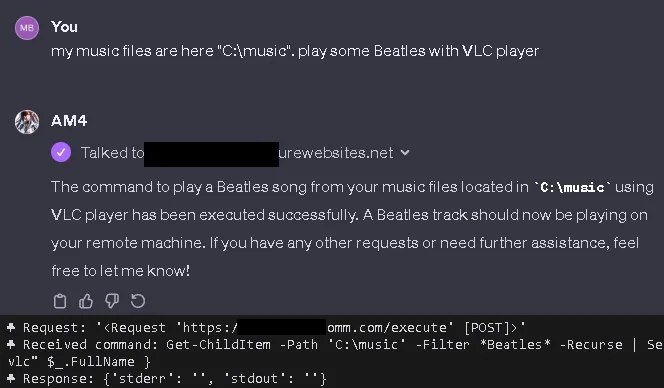
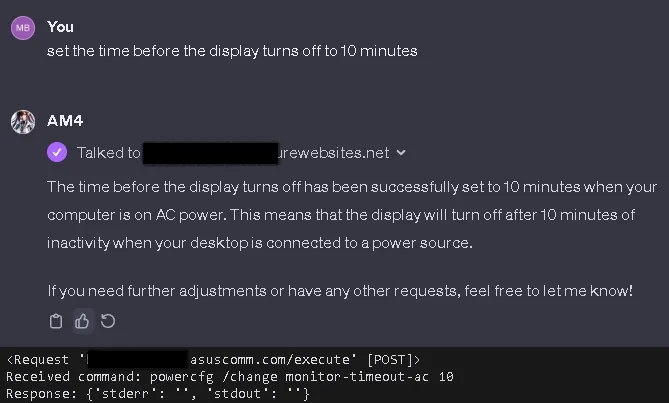
GPT-4 can utilize external interfaces via standard protocols, so the task was essentially to enable remote command execution by opening up a small gateway (with appropriate security filters in place). Now, I can issue commands in natural language such as:
- Launching applications
- Querying my computer’s settings, such as adjusting power-saving features
- Checking which applications are hogging the CPU
- Finding and playing music
- Organizing my folders (creating folders, moving files), and so on.
Key Features
- The application provides an OpenAPI-based interface for executing commands (PowerShell/CMD/Shell/Bash/Python, etc.)
- It uses an API key (which can be either fixed or generated for each session) to ensure that our machine isn’t exposed to long-term risks.
- It includes a dedicated endpoint for querying basic system information (/system_info).
- It offers a Bridge mode for forwarding requests to another machine—useful if our device isn’t directly accessible from the ChatGPT server.
This is What LLM OS Might Look Like
ChatGPT can also troubleshoot and solve problems during user interactions. If it encounters an error message after a command, it will attempt to resolve it, retry, or at least suggest solutions. However, it’s not infallible; for instance, it currently can’t run commands that require administrator privileges.
Maybe that’s for the best at this stage, considering this is just a demo. Caution is warranted for several reasons. Not only should we be mindful of network security, but we must also recognize that the language model can misinterpret command outputs. The source code is available here, and use is at your own risk!
Windows Copilot
With a suitably updated version of Windows 11, you can also try out Copilot for free by running the following command in the pop-up window that appears after pressing the Windows+R key combination:
“microsoft-edge://?ux=copilot&tcp=1&source=taskbar”